Sticker sheet templates for creators: print-ready guide
Sticker sheet templates for creators: print-ready guide
The fastest route to a print-ready sticker sheet is either an editable web template you customise in-browser or a downloadable PDF you open straight in your design app. Both work. The choice depends on how much control you want over the final file.
Quick-start TL;DR:
- Download or open an editable template sized to A4 (210 × 297 mm) or US Letter (215.9 × 279.4 mm)
- Export as a PDF at high resolution with bleed margins and crop marks included
- Use a kiss-cut layout so stickers stay on the backing sheet and peel cleanly
Three steps to get started right now:
- Pick a template from an editable web tool or a downloadable PDF source
- Set your export specs: PDF, 300 DPI, CMYK colour, 3 mm bleed, crop marks on
- Test-print on plain paper at 100% scale, measure with a ruler, then commit to sticker stock
Table of Contents
- Where do you get sticker sheet templates that are actually print-ready?
- What sticker sheet sizes and grid layouts should you use?
- What technical specs does every sticker sheet template need?
- How do you customise and export a sticker sheet step by step?
- Home printing versus professional print runs: what actually changes?
- Pre-print checklist: avoid the mistakes that ruin sticker sheets
- Why I built APD templates this way
- Key takeaways
- The mistake I see most often (and the habit that fixes it)
- Get your sticker sheets print-ready faster with Advanced Planner Designer
- Useful links and resources
Where do you get sticker sheet templates that are actually print-ready?
Two categories cover most use cases: editable web templates and downloadable design files.
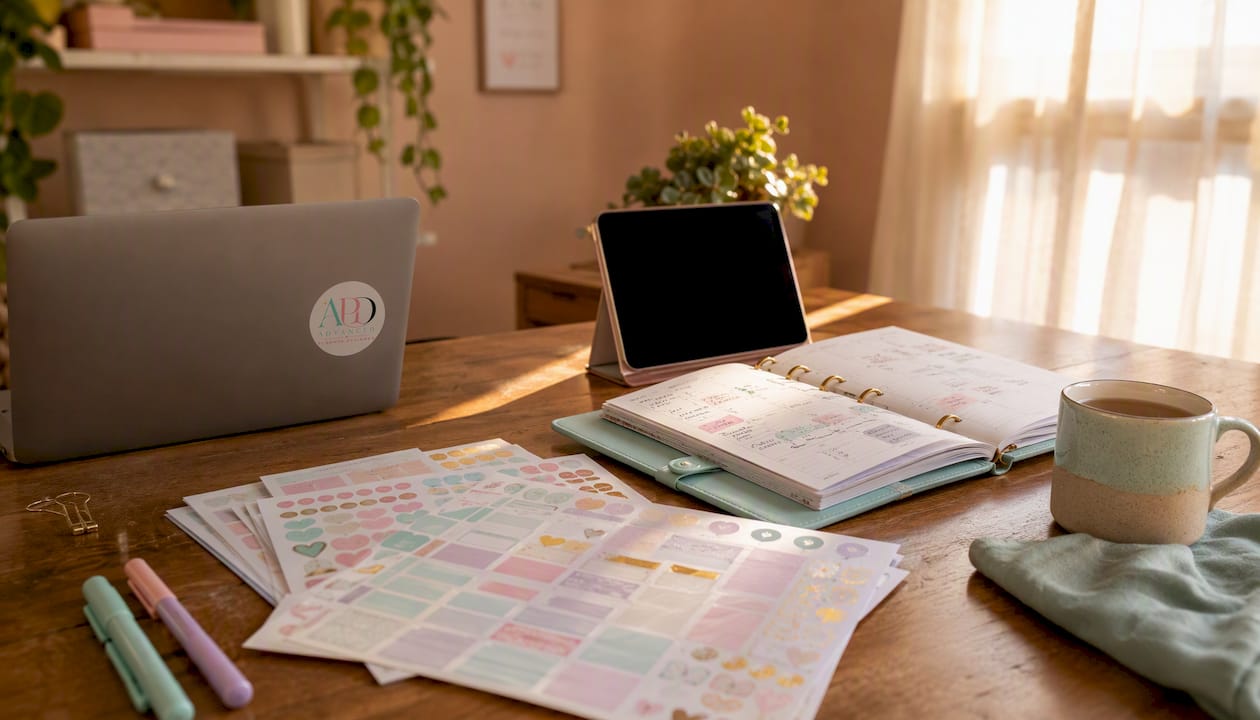
Editable web templates let you customise artwork directly in a browser, no software install needed. Tools like Canva and browser-based sticker sheet makers give you a WYSIWYG canvas where you swap colours, upload artwork and preview the sheet before downloading. The trade-off is limited control over bleed settings and colour profiles.
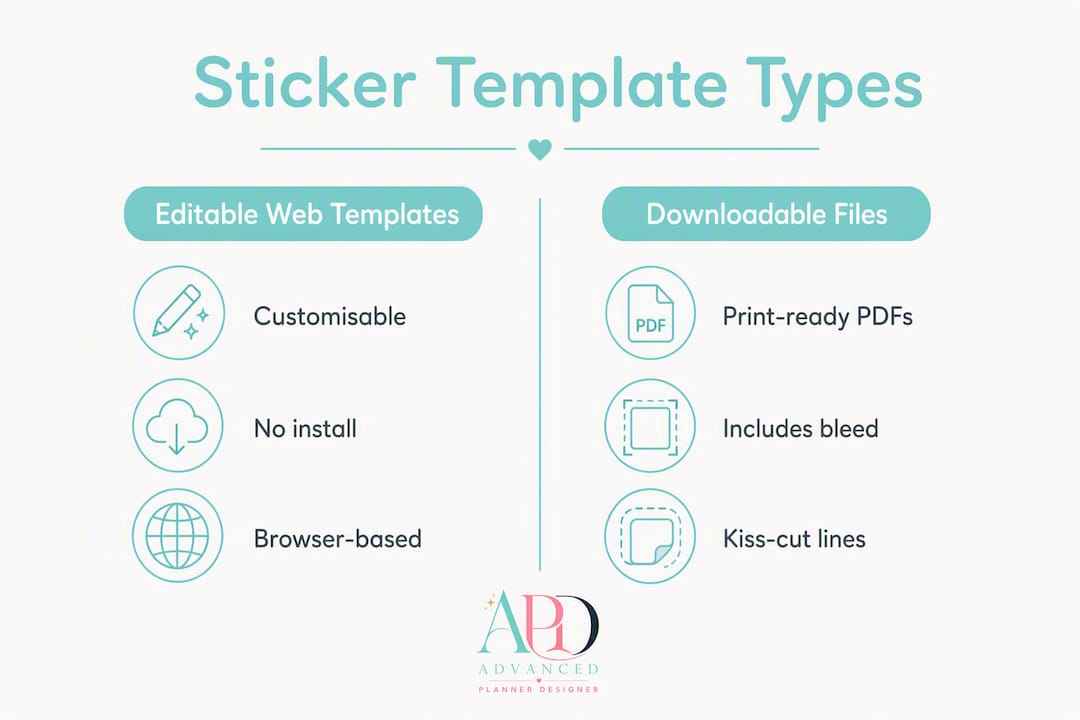
Downloadable templates (PSD, AI, EPS, PDF) give you full control. You open the file in Photoshop, Illustrator or Affinity Publisher, work in layers, set exact bleed values and export with precision. Template galleries often supply layered files and PDF cutline guides to match commercial die-cut or kiss-cut settings, which is exactly what you need when sending files to a print shop.
Here’s where to look, depending on your workflow:
- Print-shop template pages: Vistaprint Australia and similar services offer size-specific templates you download, fill and re-upload
- Advanced Planner Designer (APD) — generates a complete sticker sheet kit, including cutlines and mockups, without you needing to set up a blank canvas
For Australian sellers, A4 is the default sheet size for local printing. If you’re selling to US buyers on Etsy, keep a Letter-sized version handy too.
Pro Tip: When you download a template from a print-shop page, check whether the PDF includes crop marks and bleed guides already embedded. If it does, you can place your artwork inside the safe area and export without touching any settings.
What sticker sheet sizes and grid layouts should you use?
A4 is the international standard for printable sticker sheets across Australia. US Letter is slightly shorter and wider, which matters when you’re setting up a grid.
| Sheet size | Dimensions (mm) | Dimensions (inches) | Best use for Australian creators |
|---|---|---|---|
| A4 | 210 × 297 | 8.27 × 11.7 | Home and local print shop runs |
| US Letter | 215.9 × 279.4 | 8.5 × 11 | US-targeted Etsy listings |
| A5 | 148 × 210 | 5.83 × 8.27 | Mini sticker packs, journalling kits |
| 4 × 6 inch | 101.6 × 152.4 | 4 × 6 | Small accent sheets, postcard-style packs |
| SRA3 | 320 × 450 | 12.6 × 17.7 | Commercial print runs, large-format sheets |
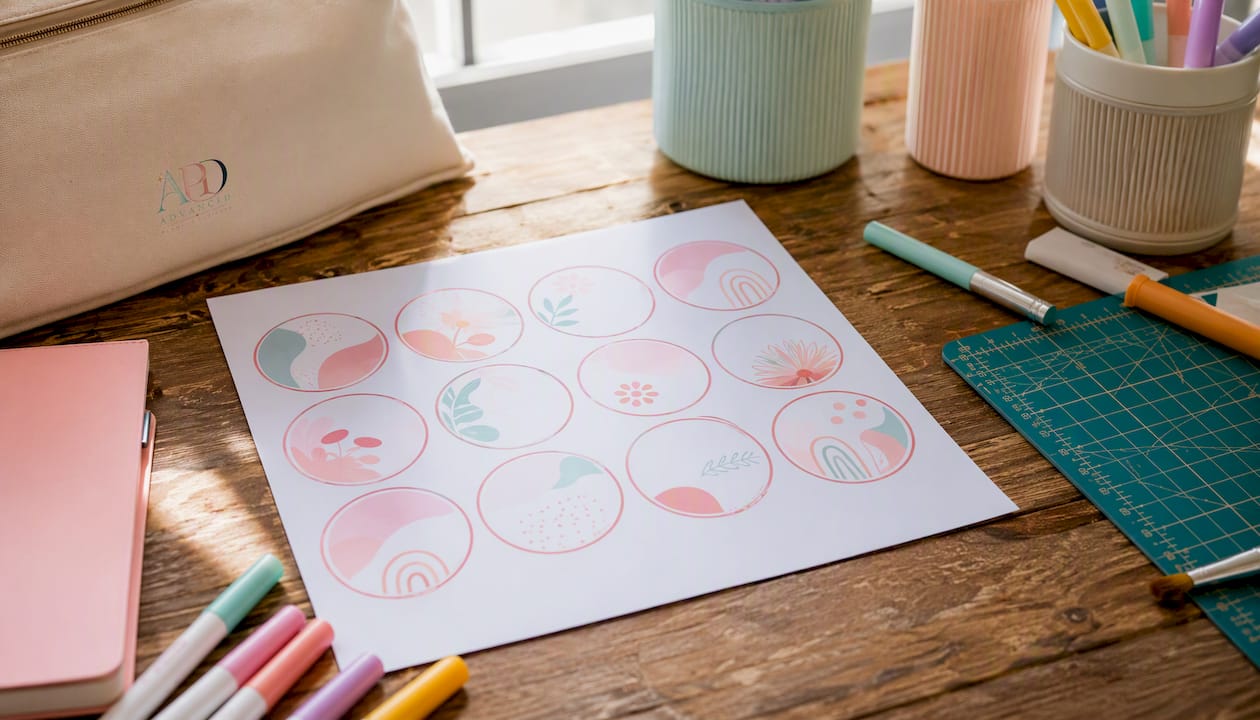
Grid layouts determine how many stickers fit a page. A common A4 setup is a common layout with multiple columns and rows using medium-sized stickers with small gaps between each. Push to higher count layout with smaller stickers with the same gap. The gap is not wasted space. A minimum spacing to help cutting machines avoid nicks helps cutting machines avoid nicking adjacent designs, which produces cleaner edges on every sheet.
How to calculate your grid:
- Start with usable print area: subtract safe margin from the edges for usable area
- Decide your sticker size, then add 4 mm gap to each sticker’s width and height
- Divide usable width by (sticker width + gap) to get column count; repeat for rows
- Multiply columns × rows for total sticker count per sheet
Common cutter-compatible presets are 4-up, 9-up and fully custom. Most Cricut and Silhouette users work with 9-up or 12-up layouts on A4 for planner sticker packs.
Pro Tip: Build your grid in a separate layer so you can toggle it off before exporting. Visible grid lines in the final PDF confuse cutting machines and some print shops.
What technical specs does every sticker sheet template need?
Getting the specs right before you export saves you from reprinting an entire run. Here’s the non-negotiable checklist.
Export checklist:
- Resolution: sufficient resolution for print. Anything lower produces visible pixelation on sticker edges.
- Colour mode: CMYK for commercial print shops. RGB is acceptable for some web-to-print services, but convert to CMYK before your final export to avoid colour shifts.
- Bleed: Add bleed area extending beyond cut line. This is the artwork that extends beyond the cut line so no white border appears if the cutter runs slightly off-register.
- Safe area: Keep all text and important design elements at least 3 mm inside the cut line.
- Cut lines: Include a separate vector cut line layer (or a spot colour named “CutContour”) so the print shop’s RIP software reads it correctly.
- Crop/registration marks: Turn these on in your export settings. They’re the small crosses and lines outside the bleed that help the printer align sheets.
- Fonts: Embed all fonts or convert to outlines before saving the PDF.
- Transparencies: Flatten transparencies in Illustrator before export to avoid rendering surprises.
File format guide: Use PDF for print shops and home printing (preserves bleed, marks and colour profiles). Use PNG or JPG for image-only uploads to web-based sticker makers. Use SVG for vector shapes that need to scale without quality loss. Keep layered PSD or AI files as your master working file so you can edit later without starting over.
Kiss-cut layouts require the cut line to score through the sticker face and adhesive but stop at the backing sheet. Your cut line depth setting matters here. If you’re sending files to a print shop, note “kiss-cut” explicitly in your order notes.
How do you customise and export a sticker sheet step by step?
The workflow is the same whether you use Canva or Advanced Planner Designer. The difference is how much of it is automated.
Universal steps:
- Open a new document at your chosen sheet size (A4 or Letter) at 300 DPI
- Set up your grid using guides or a grid layer
- Place artwork inside each sticker cell, keeping designs within the safe area
- Add a 3 mm bleed extension around each sticker’s cut boundary
- Create or import a vector cut line for each sticker shape
- Export as PDF with crop marks, bleed and embedded colour profile
Canva quick workflow
Canva works well for simple rectangular or rounded-corner sticker grids. Set a custom document size matching your sheet (e.g. 210 × 297 mm for A4). Arrange your sticker artwork in a grid using Canva’s alignment tools. When downloading, choose PDF Print and tick Crop marks and bleed. Canva exports at 300 DPI automatically for PDF Print files. One limitation: Canva does not support custom vector cut lines, so you’ll need to add those in a separate app or request kiss-cut from a print shop that accepts PDF uploads.
Advanced Planner Designer quick workflow
APD’s sticker generator handles the grid, bleed and cutlines automatically. You pick your sheet size (A4 or Letter), generate your sticker designs, and the platform arranges them into a print-ready layout. Export goes straight to a PDF with all print specs baked in. No manual bleed setup, no separate cut line layer to manage.
Pro Tip: Before printing on sticker stock, print the full sheet on plain A4 paper at 100% scale (never “fit to page”). Lay your sticker paper on top and hold both up to a light source. If the grids align, you’re good to print. If not, check your page size settings first.
Home printing versus professional print runs: what actually changes?
The gap between a home print and a commercial run isn’t just quality. It’s materials, tolerances and finishing.
| Factor | Home inkjet/laser | Professional print run |
|---|---|---|
| Paper stock | Matte or gloss inkjet sticker paper, PET vinyl sheets | Cast-coated vinyl, BOPP, speciality substrates |
| Finish options | Matte, gloss (limited by paper choice) | Matte, gloss, clear, holographic, soft-touch |
| Cut method | Cricut/Silhouette Print Then Cut, manual | Kiss-cut, die-cut, contour cut |
| Bleed tolerance | 2–3 mm (cutter registration variance) | standard bleed for commercial print, tighter on high-end presses |
| Minimum quantity | 1 sheet | Varies; many services start from small runs |
| Durability | Water-resistant if laminated; limited outdoor use | Weatherproof vinyl options available |
Choosing your materials:
- Matte sticker paper works well for inkjet home printers and gives a writable surface. Good for planner stickers.
- Gloss sticker paper produces vibrant colours but can smear with some inkjet inks before fully drying. Let sheets dry flat for 10 minutes before handling.
- Vinyl/PET sheets need laser-compatible variants. Standard PET can warp or melt in a laser fuser. Always check the paper manufacturer’s laser compatibility note before loading.
- Clear sticker paper is popular for “no-label look” designs but requires white ink or a white background layer to prevent designs from disappearing on dark surfaces.
Kiss-cut is the right choice for sticker sheets because the backing stays intact, keeping all stickers organised on one sheet. Die-cut removes the backing entirely and is better for individual stickers or handouts. For Etsy packs and craft kits, kiss-cut is almost always what buyers expect.
Professional services like Vistaprint and specialist printers document finish durability and unit pricing across small to large runs, which makes them practical for creators scaling beyond home printing.
Pre-print checklist: avoid the mistakes that ruin sticker sheets
Skipping this checklist is the single most common reason sticker sheets come out misaligned or the wrong size.
Before you print:
- Open your PDF in Adobe Acrobat or Preview and check the document size matches your intended sheet (e.g. 210 × 297 mm for A4)
- Set print scaling to Actual Size or 100% — never “Fit to Page,” which silently rescales your artwork
- Confirm crop marks and bleed are visible in the print preview
- Load sticker paper with the printable side facing the correct direction for your printer (check your printer manual; inkjet usually prints face-down from the tray)
- Align paper guides snugly against the sheet edges to prevent skewing
- Run one test print on plain paper and measure a sticker cell with a ruler before committing to sticker stock
Common mistakes in short:
- Using “Fit to Page” and wondering why stickers are 2 mm too small
- Forgetting registration marks when using Cricut Print Then Cut (the machine can’t find the calibration target)
- Not testing on plain paper first, then wasting an entire sheet of vinyl
- Printing RGB files on a commercial press and getting muddy colours
Quick fixes for common problems:
- Ink smudging: Let inkjet sheets dry flat for at least 10 minutes. Reduce ink density in your printer settings if smudging persists.
- Paper curling from laser heat: Use laser-compatible sticker paper rated for fuser temperatures. Store sheets flat under a heavy book after printing.
- Poor cutting alignment on Cricut: Recalibrate your Print Then Cut sensor. Clean the mat. Reprint the registration marks at full opacity.
Why I built APD templates this way
When I started building Advanced Planner Designer, the most common complaint I heard from creators was this: they’d spend hours setting up a sticker sheet in Canva or Illustrator, get the bleed wrong, send it to a print shop, and receive a proof with white borders around every sticker. The technical setup was eating their creative time.
APD’s sticker template system was built to remove that friction entirely.
What APD handles automatically:
- A4 and US Letter template presets, ready to use without manual document setup
- Automatic bleed and cutline generation on every sticker sheet export
- Instant print-ready PDF export with 300 DPI and correct colour settings
- Mockup generation for Etsy listing images, so your product looks professional before you’ve printed a single sheet
A creator recently used APD to build a 12-sticker planner pack, export a print-ready A4 PDF and generate three listing mockups in a single session. The whole process took less time than it used to take just to set up the bleed manually in Illustrator.
APD has supported over 10,000 creators in generating over one million products. The template presets exist because that scale taught us exactly where creators lose time, and bleed setup is always near the top of the list.
Key takeaways
A4 at high resolution with bleed margins and a kiss-cut layout is the reliable baseline for any printable sticker sheet, whether you’re printing at home or sending to a professional print shop.
| Point | Details |
|---|---|
| Sheet size | Use A4 (210 × 297 mm) for Australian printing; keep a US Letter version for Etsy’s US buyers. |
| Export settings | Export as PDF at 300 DPI, CMYK colour, with 3 mm bleed and crop marks enabled. |
| Test before committing | Print at 100% scale on plain paper and measure sticker cells with a ruler before using sticker stock. |
| Cut method | Kiss-cut keeps stickers on the backing sheet and is the right choice for sheet-format packs. |
| Use Advanced Planner Designer | APD auto-generates A4/Letter sticker sheets with bleed, cutlines and listing mockups built in. |
The mistake I see most often (and the habit that fixes it)
Most creators I talk to make the same early mistake: they design a beautiful sticker sheet, export it, and print it without ever checking the document dimensions in the PDF viewer. The file looks right on screen. It prints 94% of the correct size because “Fit to Page” was quietly on. The stickers don’t line up with the pre-cut backing. The whole sheet is wasted.
The habit that fixes it takes 30 seconds. Open your exported PDF in Acrobat or Preview, go to Document Properties, and confirm the page dimensions match your intended sheet size exactly. Then set print scaling to Actual Size. Do that every single time, before every print run, and you’ll almost never have a sizing problem again.
For packaging sticker sheets for sale, keep it simple. A clear cello sleeve, a backing card with your brand name and a small label showing the sticker count and paper type is all you need. Buyers notice when a product looks considered. It doesn’t have to be elaborate.
Get your sticker sheets print-ready faster with Advanced Planner Designer
Designing a sticker sheet from scratch means setting up document sizes, adding bleed, building a grid, creating cut lines and then exporting with the right specs. Advanced Planner Designer does all of that in one flow. You pick your sheet size, generate your sticker designs, and download a print-ready PDF that’s compatible with Australian home printers and commercial print shops alike.

The APD sticker generator produces A4 and Letter-format sheets with automatic bleed, cutlines and 300 DPI export built in. You also get listing mockups generated at the same time, so your Etsy product page is ready the moment your file is. Check the APD pricing plans to see the trial options and start with a sticker sheet template today.
Useful links and resources
A curated list of templates, technical references and tools to help you act on this guide straight away.
Technical standards:
- ISO 216 (A-series paper sizes) — the authoritative source for A4 and A5 dimensions used across Australia
Template downloads and makers:
- PDF Press — free A4 sticker sheet template — download a free print-ready A4 die-cut imposition template
Print shop template pages:
- Vistaprint custom sticker sheets — size options, material choices and proofs for small to large runs
- Stickerit custom sticker sheets — layered file uploads, mixed-size layouts and digital proofs
- A4 Sticker Paper size guide — practical size options including SRA3 and professional print considerations
APD generator pages:
- APD sticker generator — generate and export a print-ready sticker sheet with auto bleed and cutlines
- APD mockup generator — create listing images for your sticker packs without a separate photo shoot
- APD pricing — view trial and subscription options before you start
Further reading for creators:
- Yearbook online creator tools explained — useful breakdown of auto-layout and custom grid features in web-based creator tools
- Kiss-cut vs die-cut explained — clear guide on when to use each cut type for sticker sheets