How to make a digital colouring book: a 2026 guide
How to make a digital colouring book: a 2026 guide
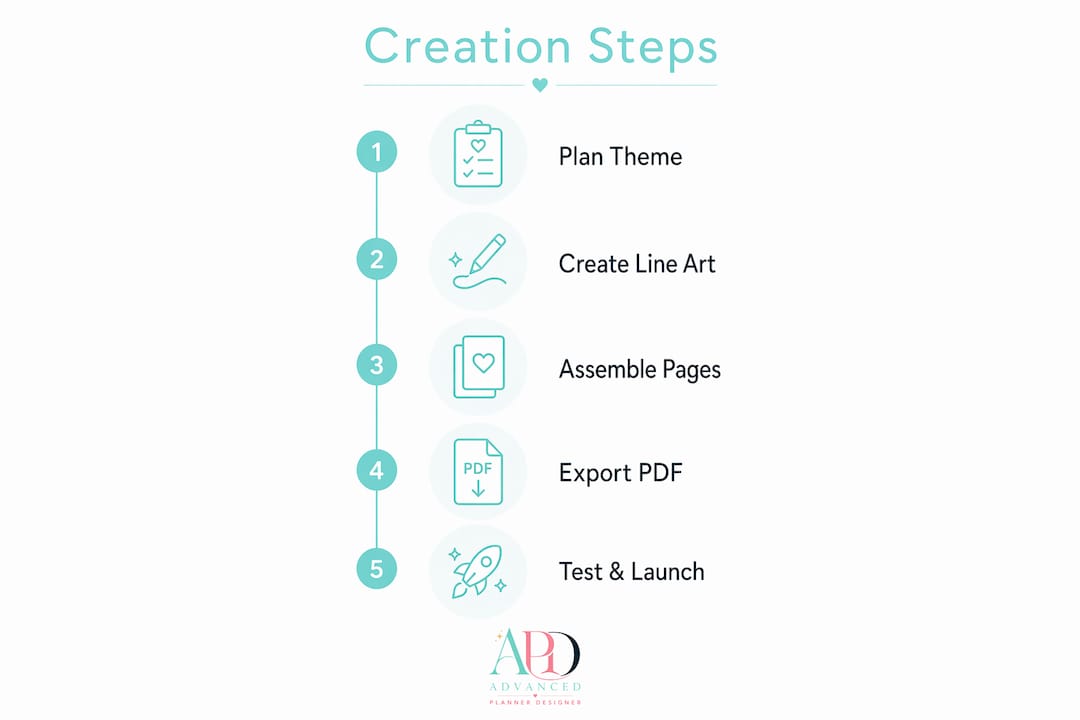
A digital colouring book is a collection of clean, printable line art pages designed for colouring with pencils, markers, or digital tools. Knowing how to make a digital colouring book is more achievable than most creators expect. The process follows four clear stages: planning your theme and audience, creating or generating line art, assembling your pages in a design tool, and exporting a print-ready or digital file. Professional standards call for 300–600 DPI resolution for sharp output, and beginners do well starting with 12–24 pages. AI image generators, design platforms like Canva, and purpose-built tools like Advanced planner designer have made the entire workflow accessible to creators with no formal design background.
How to plan your digital colouring book effectively
Good planning is the single biggest factor separating a polished colouring book from a scattered one. Before you open any design tool, define your book’s purpose. Are you creating a gift, building a product to sell on Etsy, supporting a classroom, or making something therapeutic for adults? Each purpose shapes every decision that follows.
Choosing a focused theme keeps your pages cohesive and your audience clear. Popular themes include botanical illustrations, fantasy creatures, mandalas, seasonal scenes, and affirmation-based designs for adults. A niche theme also makes your product easier to market and find online.
Industry guides recommend 12–24 interior pages for a first project. That range is enough to feel complete without causing burnout before you finish. For page size, 8.5 x 11 inches (US Letter) is the most practical choice because it prints easily at home and fits standard print-on-demand services.
Line complexity must match your audience. Bold thick outlines suit ages 4–8; medium detail works for ages 8–12; intricate mandalas or botanical designs engage adults. Getting this wrong is one of the most common beginner mistakes, and it directly affects how much buyers enjoy the finished product.
Before you draw or generate a single image, write a one-page outline listing every page idea. This keeps your style consistent and stops you from doubling up on similar compositions.
- Define your purpose: gift, sale, educational, or therapeutic
- Choose a tight, marketable theme
- Set page count at 12–24 pages for your first project
- Pick 8.5 x 11 inches as your default page size
- Match line complexity to your target age group
- Plan margins of at least 0.25 inches to avoid clipping during printing
Pro Tip: Create a simple one-page style guide before you start. Note your chosen line weight, the level of detail per page, and any recurring motifs. Refer to it every time you create a new page to keep the whole book feeling unified.
What are the best ways to create line art for colouring books?
Line art is the heart of any colouring book. You have three main paths: drawing manually, using AI generation, or combining both in a hybrid workflow. AI excels at mass generation; manual and hybrid methods give you more control over personalised or brand-specific detail.
AI image generators can produce usable line art in seconds, but the prompt you write determines everything. A weak prompt produces shaded, grey, or photorealistic images that are unusable for colouring. A strong prompt is specific and restrictive.
- Start with a clear subject: “a single sunflower with large petals and a detailed centre.”
- Add style instructions: “black and white line art, coloring book page, flat illustration.”
- Add negative modifiers to your prompt: “no shading, no gradients, no hatching, no colour, no background.”
- Generate multiple versions and select the cleanest result.
- Apply a threshold filter in an image editor to convert grey pixels to pure black or white.
- Increase contrast to sharpen any soft edges before placing the image in your layout.
- Review each image at 100% zoom to catch fuzzy lines before assembly.
The threshold filter step is one most beginners skip, and it causes muddy prints. Converting your image to pure black and white pixels at this stage prevents grey artefacts from appearing in the final printed page.
For manual drawing, tools like Adobe Illustrator or Procreate give you full control over line weight and style. Scanning hand-drawn sketches and cleaning them up digitally is also a reliable hybrid method. The Canva design platform supports basic image placement and layout, though dedicated illustration tools handle line art cleanup better.
Expert creators recommend building a “locked prompt pattern” and reusing it across every AI-generated page. This keeps line weight, detail level, and composition style consistent throughout the book.
Pro Tip: Save your locked prompt as a text file and paste it every time you generate a new page. Change only the subject. This one habit produces a far more cohesive book than writing a fresh prompt each time.
How do you assemble and format your colouring book pages?
Once your line art is ready, you need to assemble it into a complete, print-ready document. Canva is the most accessible tool for this stage, and it handles page layout, cover design, and PDF export in one place. You can also use Adobe InDesign or Affinity Publisher for more control.
Set your document to 8.5 x 11 inches with margins of at least 0.25 inches on all sides. Pages without adequate margins get clipped during trimming, which ruins the final product.
Every professional colouring book includes front matter. Add these pages before your interior artwork:
- Title page: book name, your name or brand, and a simple decorative element
- Copyright page: your name, year, and a basic rights statement
- Dedication or welcome page: optional, but adds warmth and personality
- Colour test page: a dedicated page with simple shapes for swatching colours, which raises the perceived value of your book
Arrange interior pages for single-sided printing. This prevents marker or paint bleed-through from ruining the page underneath. Add page numbers to the footer, keeping them small and unobtrusive.
| Export setting | Recommended value |
|---|---|
| Resolution | 300 DPI minimum, 600 DPI preferred |
| Colour mode | CMYK for print, RGB for digital |
| File format | PDF with bleed marks for print-on-demand |
| Bleed | 0.125 inches on all sides |
Exporting to PDF with CMYK colour mode and bleed marks is non-negotiable for print-on-demand services. Skipping this step causes colour shifts and trimming errors in the final printed copy.
What are the final steps to produce, test, and distribute your book?
Testing before full distribution saves you from publishing a product with invisible problems. Many line art images that look crisp on screen print poorly due to anti-aliasing or margin misalignment. Printing 3–5 test pages reveals issues with line weight, margins, and bleed-through that you simply cannot see on a monitor.
- Export a test PDF and print it at home or through a local print shop.
- Colour two or three pages yourself using the markers or pencils your audience would use.
- Check for bleed-through by holding the page up to light.
- Verify that no artwork is clipped at the edges.
- Confirm that line weight feels satisfying to colour, not too thin or too thick for your target age group.
Once your test passes, choose your distribution method. For digital downloads, export a compressed PDF optimised for file size without sacrificing resolution. Platforms like Etsy accept PDF downloads directly, and you can use the sell digital products workflow to set up your listing efficiently.
For print distribution, print-on-demand services handle fulfilment automatically once you upload a print-ready PDF. Register your copyright before publishing. In Australia, copyright protection is automatic under the Copyright Act 1968, but keeping a dated record of your original files strengthens your position if a dispute arises.
Ordering a physical proof copy before listing your book for sale is the single most effective quality check available. What looks perfect on screen often reveals margin, contrast, or bleed issues only visible on paper.
For marketplace listings, product mockups make a significant difference to click-through rates. A professional cover image showing your book in a realistic setting builds buyer confidence before they read a single word of your description.
Key takeaways
Creating a high-quality digital colouring book requires clear planning, clean line art at 300–600 DPI, proper front matter, and a tested print-ready PDF before distribution.
| Point | Details |
|---|---|
| Plan before you create | Define your theme, audience, and page count (12–24 pages) before generating any artwork. |
| Use locked AI prompts | Negative modifiers like “no shading, no gradients” produce clean, consistent line art across all pages. |
| Apply threshold filters | Convert AI output to pure black and white pixels to prevent muddy prints. |
| Include front matter | A colour test page, title page, and copyright page add professionalism and perceived value. |
| Test before publishing | Print 3–5 pages and colour them yourself to catch margin, bleed, and line weight issues. |
AI and creativity: what I’ve actually learned making colouring books
The most common mistake I see new creators make is treating AI generation as a finished product. It is a starting point, not an endpoint. Every AI-generated image I have used required at least one round of threshold adjustment and manual cleanup before it was genuinely print-ready. Skipping that step is the difference between a book that looks professional and one that looks like a draft.
The hybrid workflow, where AI generates the base image and you refine it manually, consistently produces better results than either method alone. AI gives you speed and volume. Manual refinement gives you the style consistency that makes a book feel intentional rather than assembled.
Planning the theme and audience before touching any tool is the advice I give every creator I work with. When you know exactly who you are making the book for, every decision about line weight, complexity, and page count becomes obvious rather than guesswork.
The market for digital colouring books in 2026 is genuinely accessible. Creators with no formal design training are producing and selling books that buyers love, because the tools have caught up with the ambition. The gap between a good idea and a finished product has never been smaller. What separates successful creators is not talent. It is process.
— Caris A Miles
Advanced planner designer: your colouring book creation toolkit
Advanced planner designer has supported over 10,000 creators in generating over one million products, and its AI colouring book generator is built specifically for creators who want to move from idea to finished file without piecing together multiple tools.

The platform generates line art, assembles pages, and produces print-ready exports in one workflow. The AI cover generator creates professional covers that lift your listing’s visual appeal, and the mockup generator produces realistic product images for your Etsy or marketplace listing. Advanced planner designer handles the technical side so you can focus on the creative decisions that make your book worth buying. Review the pricing plans to find the option that fits your project scale.
FAQ
What is a digital colouring book?
A digital colouring book is a collection of black and white line art pages formatted as a PDF or digital file, designed to be printed and coloured or used with digital colouring apps.
How many pages should my first colouring book have?
Industry guides recommend 12–24 interior pages for a first project. That range produces a complete, cohesive product without the risk of burnout before you finish.
What DPI should I use for a colouring book?
Export your files at a minimum of 300 DPI, with 600 DPI preferred for finer line work. Lower resolution produces blurry or pixelated lines in the printed copy.
Can I create a colouring book with AI tools?
Yes. AI image generators produce usable line art when you use a locked prompt pattern with negative modifiers like “no shading, no gradients, no colour.” Post-processing with a threshold filter is required before the images are print-ready.
How do I sell my digital colouring book online?
Export a print-ready PDF and list it as a digital download on platforms like Etsy or Amazon KDP. Professional mockup images and a clear product description significantly improve your listing’s performance.